
How to use Giveaway Widget
The whole app, explained in plain words. Ten minutes from "what is this" to "I've got it".
The big picture
You set your brand once. You build a giveaway. You put it on your site, or share its link. People enter, confirm their email, and earn bonus entries. When it ends, you draw a winner.
Everything in the app hangs off that loop. The dashboard has three sections. Giveaways is where you build and run them. Brand is your logo, colors, and social handles, set once. Account is usage, billing, and your password.
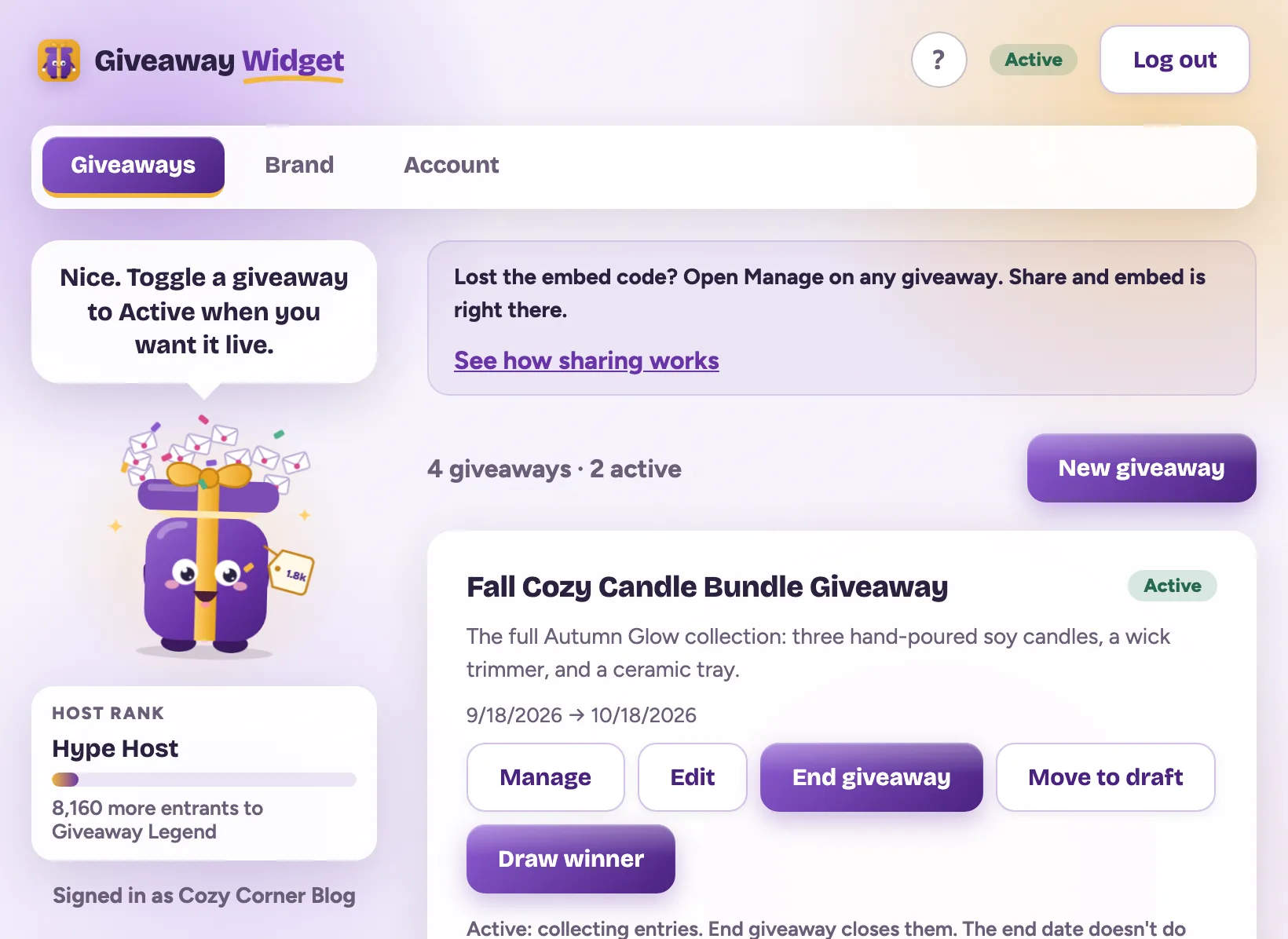
Giveaways is home. One card per giveaway, its status in the corner, and the buttons that move it along.
Every giveaway has a status
Each giveaway is in exactly one of four spots. You never type a status. You tap a button on the card when you're ready for the next step.
The buttons: Make active opens entries. End giveaway closes them. Move to draft pauses an active giveaway without losing anything. Draw winner picks from the verified entrants.
What each section is for
- Giveaways is every giveaway you've made. New ones start here. Each card has Manage (entrants, stats, export, embed code) and Edit (the form).
- Brand is the stuff that doesn't change: logo, two colors, your five social handles, your privacy policy link. New giveaways prefill from it. Changing it later only affects new giveaways.
- Account shows your usage against the plan limits, handles billing, and changes your password.
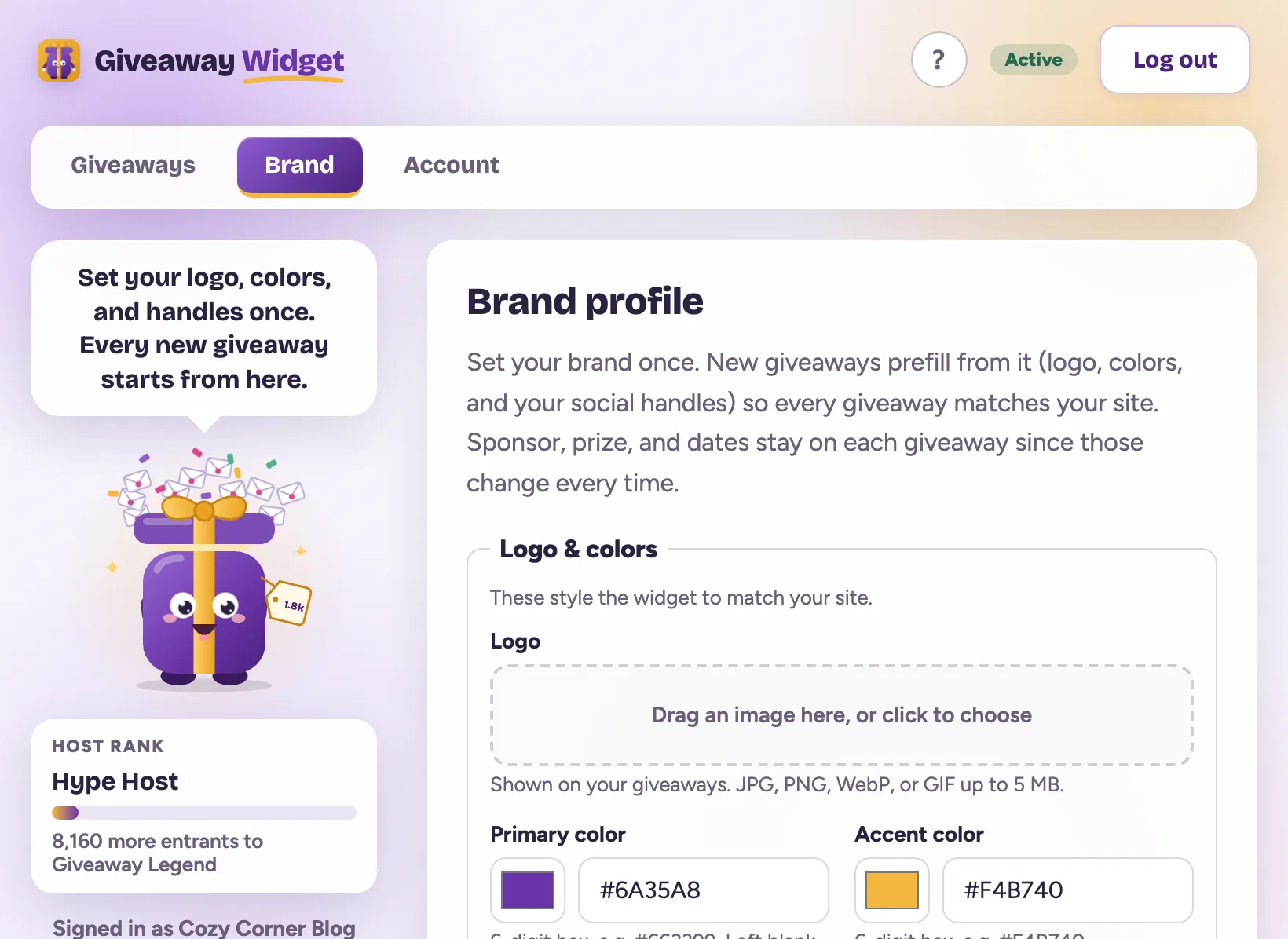
Brand. Fill it in once and you'll never re-type your handles on a giveaway form.
What entrants see
Your giveaway looks the same whether it's embedded on your site or opened as its own page.
- They type their email and name, pass a quick bot check, and get a 6-digit code in their inbox. There's also an unticked box to get your emails, and entering never ticks it for them.
- They confirm the code. That's one entry, and it's the only entry that counts as verified.
- Now they see the bonus actions you picked: follow you on up to five platforms, come back daily, visit a sponsor, or click a custom link like your newsletter.
- Everyone gets their own referral link. Each friend who enters through it and confirms their code earns the referrer 3 bonus entries.
Follows and custom links are on the honor system, because the social platforms don't share follower lists with anyone. The email entry and referrals are verified. If someone never confirms their code, they're in your list as Unverified and they can't win.
Before you email your entrants: your CSV export has an Email opt-in column. Only people marked yes agreed to your newsletter or promos. Everyone else entered the giveaway only, so email them about the giveaway (like telling the winner) and nothing else.
Want to see it from their side? Open any giveaway's Manage screen and tap See it as an entrant. It shows the entered view with every action unlocked, and nothing is saved.
A normal giveaway, start to finish
- Tap New giveaway. Name the prize, add a photo, set the dates, pick the entry actions and how many entries each is worth. Save. It's a draft.
- Copy the embed code onto your site, or copy the hosted link for your bio and posts. When the embed is in place, tap Make active.
- When the end date arrives, tap End giveaway, then Draw winner. Email the winner at the address on the card.
While it runs, Manage shows entrants coming in, how many confirmed, and which actions people actually do.
Your first ten minutes
- Set your brand. Open Brand, drop in your logo, pick two colors, type your handles. Two minutes, and every giveaway after this starts styled.
- Build one giveaway. New giveaway, a real prize, dates a week out. Leave Email signup on, add one follow action. Save.
- Look at it. On the card, tap Manage, open Share and embed, tap Open live page. That's what your readers get. Don't make it active until you mean it.
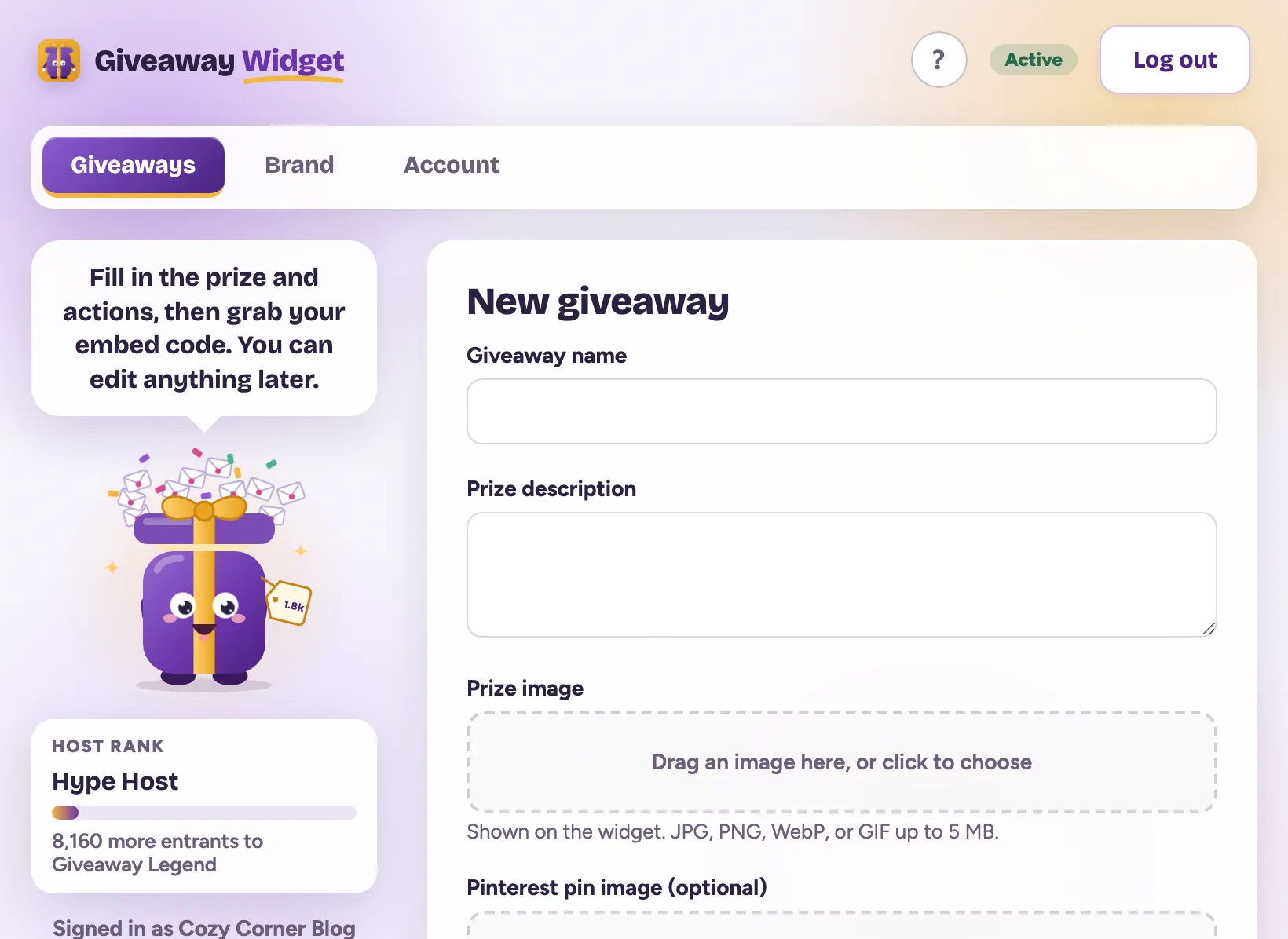
The giveaway form. The live preview sits beside it on a wide screen and below it on a phone.
Putting it on your site, step by step
Every giveaway has two ways out into the world, and both are on the Manage screen under Share and embed (and on the Edit form, and on the screen right after you create it).
The embed code
Two lines of HTML. Paste them wherever you want the giveaway to appear and the widget draws itself there.
<div data-giveaway="gw_yourkey"></div>
<script src="https://giveawaywidget.com/embed.js" async></script>- WordPress: add a Custom HTML block where you want it and paste.
- Squarespace, Shopify, Ghost, Carrd, Webflow: add an HTML or embed block and paste.
- It sizes itself to the column it's in, so a sidebar and a full-width post both work.
The hosted link
No site, or no place to paste code? Share https://giveawaywidget.com/?key=gw_yourkey. The giveaway runs as its own page,
branded with your logo and colors. Drop it in a bio link, an email, a pinned post.
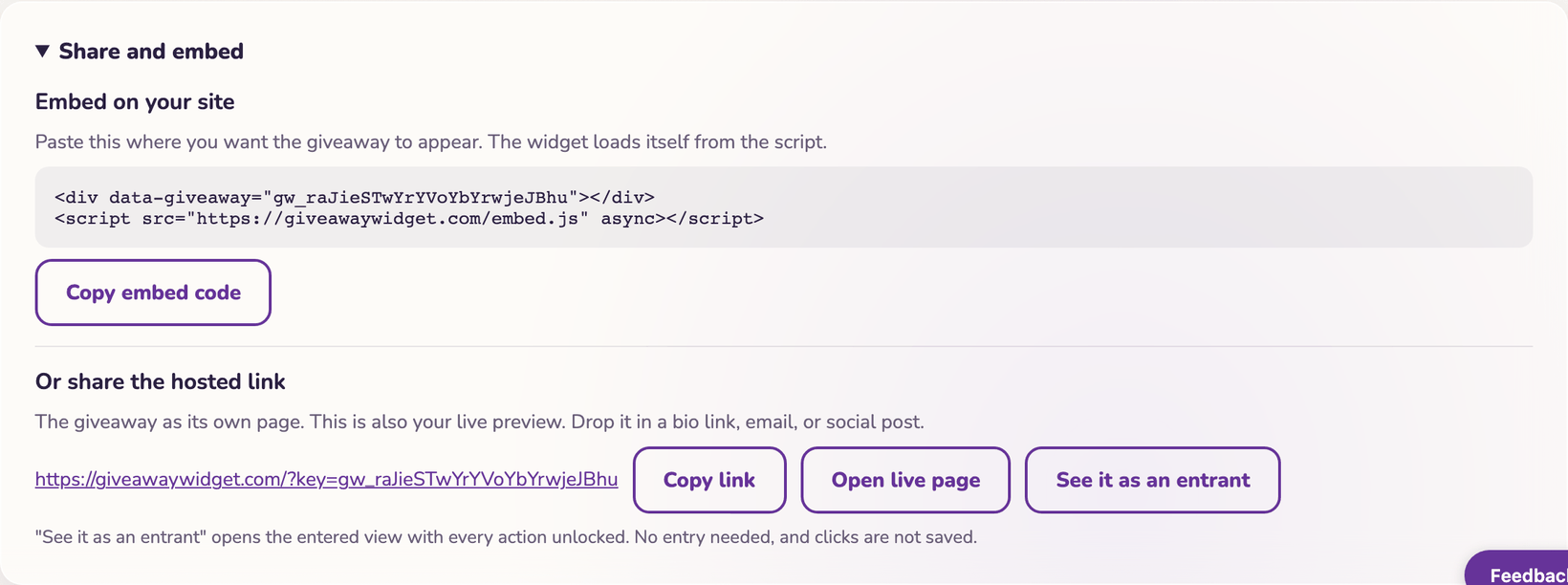
Share and embed. Copy the code, or copy the link. See it as an entrant opens the finished view with nothing saved.
Drawing the winner, step by step
- Tap End giveaway on the card. Entries close, and the widget tells visitors it's over.
- Tap Draw winner. The draw is random and weighted by entries, across verified entrants only. It's logged every time.
- The card now shows the winner's name, email, and entry count. Reach out to them at that address.
- If the winner's name is turned on for the giveaway, the widget shows their first name and last initial, like "Jane D." Never their email.
They didn't reply? Tap Draw again. The new draw skips the previous winner. You can also draw while a giveaway is still Active if you need to pick early.
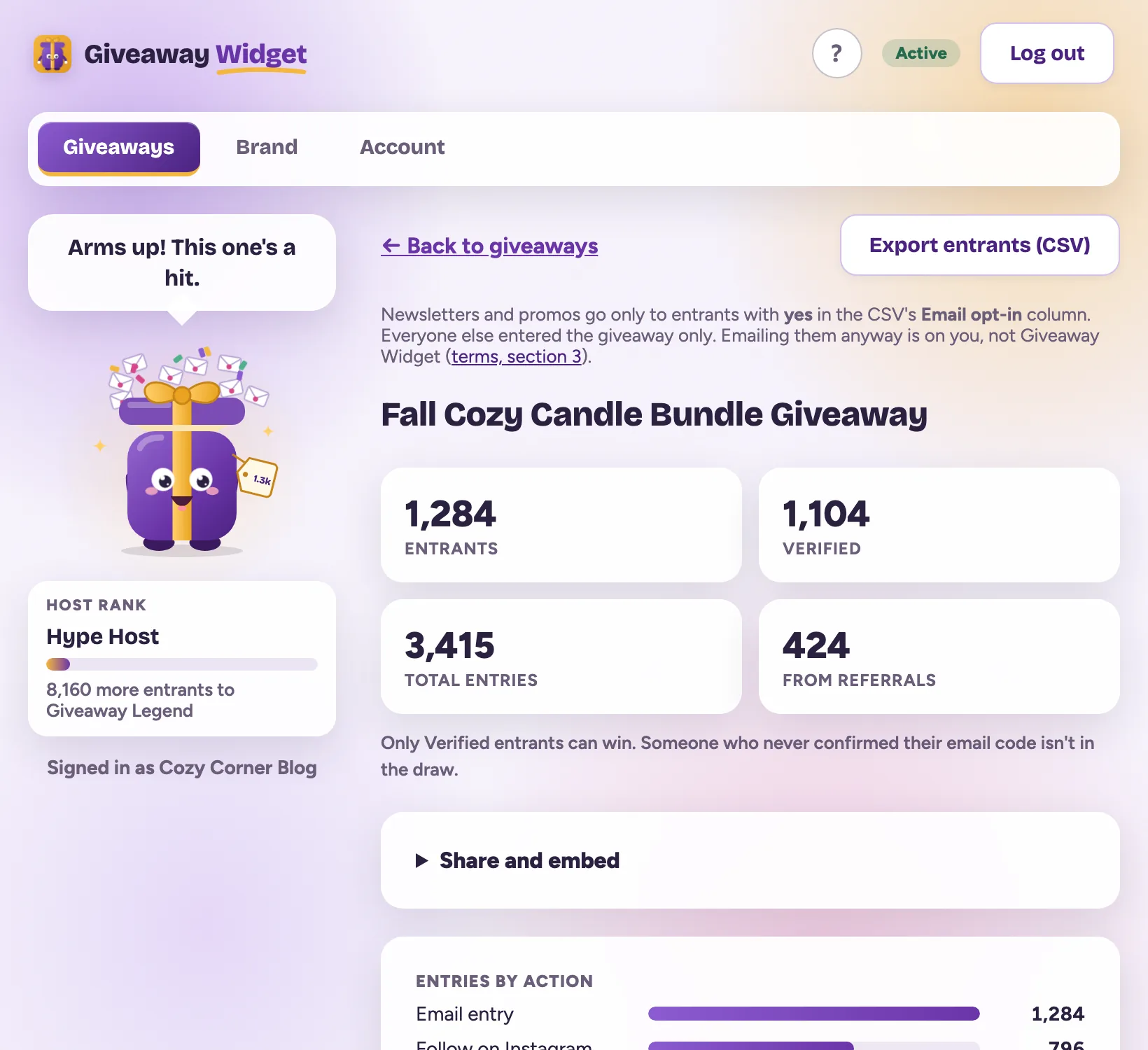
Manage. Who entered, how many confirmed, and which actions did the work. Export entrants (CSV) is top right.
Quick answers
- Can I change a giveaway after it's live?
- Yes. Edit opens the same form at any status. Entries people already earned stay put. The embed code and hosted link never change, so you don't have to touch your site.
- Does the end date close entries on its own?
- No. Dates show entrants a countdown. Entries stay open until you tap End giveaway. Do that when the date arrives, then draw the winner.
- Can entrants cheat the follow actions?
- Follows and custom links are on the honor system, the same as every giveaway tool, because the social platforms don't share follower lists. The email entry and referrals are verified: each one needs a confirmed 6-digit code.
- What are the limits?
- One plan, every feature included: 3 active giveaways at a time and 5,000 entrants per giveaway each month. The Account page shows where you stand.
- What happens if I cancel?
- Your live giveaways keep collecting entries, and you can still manage them, end them, draw winners, and export entrants. Creating and editing giveaways needs an active plan.
- Can I see the app tour again?
- Yes. Tap the ? button at the top of the dashboard, then tap Show me around.
- Where do I ask for help?
- The Feedback button in the bottom corner of the dashboard goes straight to me, Jen. I read every one.